Adobe Photoshop has long been the go-to software for designers, offering a robust suite of tools that enable the creation of stunning visuals. Whether you’re a seasoned veteran or a newcomer to the world of graphic design, understanding the best tools at your disposal can elevate your work to new heights. In this article, we will delve into the top five Photoshop tools that every designer should master, exploring their features, uses, and best practices.
1. The Brush Tool
The Brush Tool is arguably one of the most versatile and powerful tools in Photoshop. It allows designers to create custom artworks, enhance photographs, and add intricate details to their designs.
Features of the Brush Tool
- Custom Brushes: Users can create and save their own brushes, tailoring them to specific projects.
- Brush Dynamics: Control size, opacity, flow, and other dynamics to create realistic effects.
- Blend Modes: Experiment with different blending modes to achieve unique visual styles.
Best Practices
- Familiarize yourself with the Brush Settings panel to customize your brushes effectively.
- Utilize the pressure sensitivity feature if you have a graphics tablet.
- Experiment with different blend modes to enhance your designs.
2. The Pen Tool
The Pen Tool is essential for precision work, enabling designers to create complex shapes and paths. This tool is widely used for vector graphic design and image manipulation.
Why Use the Pen Tool?
- Precision: Create paths with exact geometric precision, which is crucial for logo design and other vector-based projects.
- Scalability: Since paths are vector-based, they can be resized without loss of quality.
- Control: Easily adjust anchor points and curves for intricate designs.
Tips for Mastering the Pen Tool
- Practice creating simple shapes before moving on to complex designs.
- Use keyboard shortcuts to switch between tools quickly.
- Leveraging the Convert Point Tool to fine-tune curves and angles can save time and effort.
3. The Layer Styles
Layer Styles are a collection of effects that can be applied to layers, providing an easy way to enhance designs without extensive manual work. They can dramatically improve the aesthetics of your project.
Types of Layer Styles
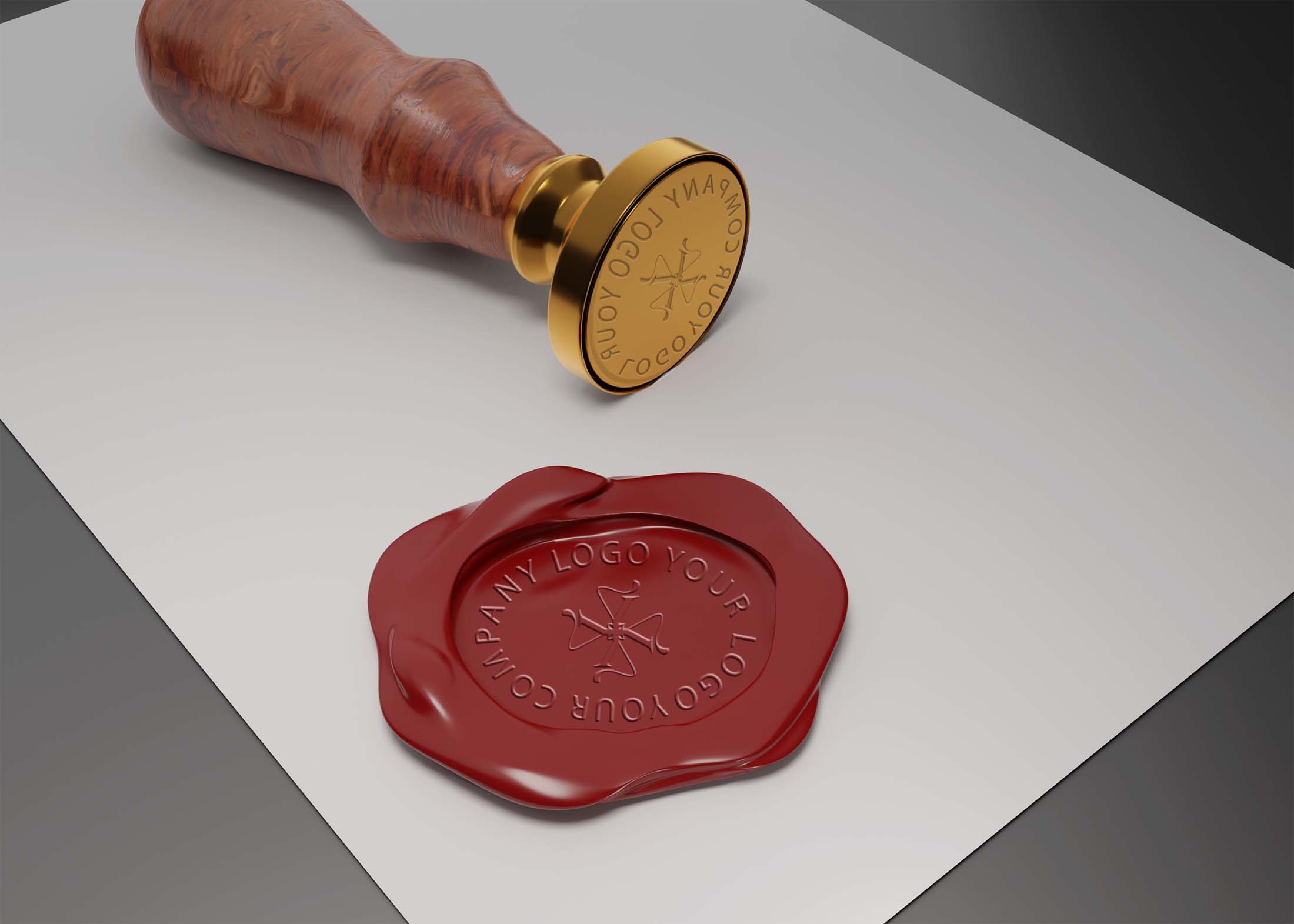
- Bevel and Emboss: Create depth and dimension on elements.
- Drop Shadow: Add realism with shadows that mimic light sources.
- Gradient Overlay: Apply subtle color transitions for a polished look.
How to Use Layer Styles Effectively
- Combine multiple styles to create unique effects.
- Adjust the opacity and blending options to match your design needs.
- Use layer styles to create templates that can be reused across projects.
4. The Clone Stamp Tool
The Clone Stamp Tool is crucial for photo editing, allowing designers to duplicate parts of an image and erase imperfections seamlessly.
When to Use the Clone Stamp Tool
- Photo Retouching: Remove blemishes and unwanted elements from images.
- Image Restoration: Repair old or damaged photographs by cloning healthy areas.
- Creative Compositing: Create unique effects by duplicating parts of an image.
Tips for Using the Clone Stamp Tool
- Adjust the brush size to match the area you are cloning.
- Use the Alt key to select the source point accurately.
- Zoom in for detailed work to maintain precision and quality.
5. The Text Tool
Text is a fundamental element of design, and the Text Tool in Photoshop offers extensive functionality for typography work. Whether you’re creating logos, posters, or digital graphics, mastering the text tool is essential.
Features of the Text Tool
- Text Layers: Create editable text layers that maintain quality when resized.
- Character and Paragraph Settings: Fine-tune attributes like font, size, spacing, and alignment.
- Layer Effects: Combine text with layer styles for creative typographical designs.
Best Practices for Typography in Photoshop
- Choose fonts that align with your design’s theme and message.
- Utilize character spacing and line height for improved readability.
- Consider hierarchy in your text to guide the viewer’s gaze.
Conclusion
Mastering these five tools in Photoshop can significantly enhance your design workflow and creativity. The Brush Tool, Pen Tool, Layer Styles, Clone Stamp Tool, and Text Tool are indispensable for any designer aiming to produce high-quality work. By understanding their functionalities and best practices, you can unlock the full potential of your designs and create visuals that stand out. Embrace these tools, and watch as they transform your workflow and projects.
FAQ
What are the top Photoshop tools for graphic designers?
The top Photoshop tools for graphic designers include the Brush Tool, Pen Tool, Type Tool, Clone Stamp Tool, and the Layer Styles. Each of these tools offers unique capabilities for creating and editing graphics.
How can I effectively use the Brush Tool in Photoshop?
To effectively use the Brush Tool in Photoshop, customize the brush settings to suit your project needs, experiment with different brush types, and utilize layers to separate your brush strokes for better editing.
What is the Pen Tool used for in Photoshop?
The Pen Tool in Photoshop is used for creating precise paths and shapes. It is particularly useful for making selections and for creating vector graphics that can be edited without losing quality.
How does the Type Tool enhance design projects in Photoshop?
The Type Tool enhances design projects in Photoshop by allowing designers to add and manipulate text easily, offering various fonts, styles, and effects to create visually appealing typography.
What is the significance of Layer Styles in Photoshop?
Layer Styles in Photoshop are significant because they allow designers to apply effects such as shadows, glows, and bevels to layers non-destructively, enhancing the visual appeal of their designs.
Why is the Clone Stamp Tool important for photo editing?
The Clone Stamp Tool is important for photo editing because it allows designers to duplicate parts of an image, effectively removing unwanted elements or repairing imperfections while maintaining the original quality.