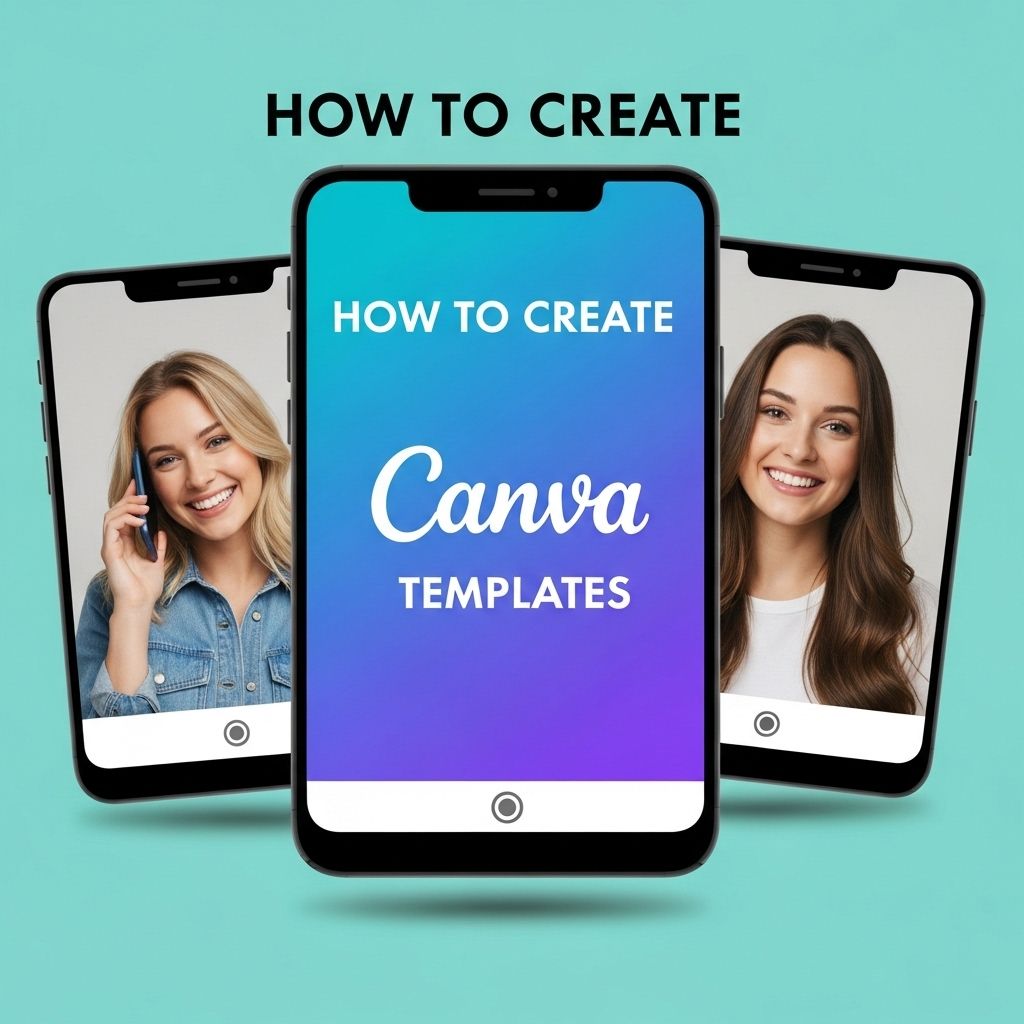
Creating stunning visual content has become a vital aspect of both personal branding and business marketing. With the rise of platforms like Canva, designers and non-designers alike can easily create professional-looking graphics. This article will provide you with a comprehensive guide on how to create Canva templates that can be reused for various projects, saving you time and ensuring brand consistency.
Canva has revolutionized the way we design and create stunning visual content, making it accessible to everyone, regardless of skill level. Whether you’re crafting social media posts or marketing materials, mastering Canva can help you produce eye-catching templates with ease. For inspiration, see examples of effective branding that showcase the potential of well-designed templates.
Understanding Canva Templates
Templates in Canva are pre-designed layouts that provide a framework for adding your own content. Using templates helps streamline the design process, especially when working on projects that require uniformity, such as social media graphics, presentations, or marketing materials.
Benefits of Using Canva Templates
- Time Efficiency: Templates allow you to save time by providing a basic structure that you can customize.
- Consistency: Reusing templates ensures that your brand’s visual identity remains consistent across various platforms.
- Access to Design Tools: Canva offers a plethora of design tools that can enhance your templates, making them visually appealing.
- User-Friendly: The intuitive interface of Canva makes it easy for beginners to create and customize templates.
Steps to Create a Canva Template
Creating a template on Canva is straightforward. Follow these steps to design your own:
1. Sign Up or Log In to Canva
If you don’t have a Canva account yet, visit canva.com to sign up. Log in if you already have an account.
2. Choose Your Design Type
Canva offers various design types including:
- Social Media Posts
- Presentations
- Infographics
- Flyers
- Business Cards
Select the design type that suits your project. This selection will open a new design page tailored to that format.
3. Select a Template or Start from Scratch
Canva provides numerous pre-made templates. You can choose one that fits your needs or start with a blank page. If you opt for a template, you can customize it entirely.
4. Customize Your Template
Here are key components to customize:
- Background: Change the background color or add an image.
- Text: Use the text tool to add and format your content. Adjust font size, style, and color to match your brand.
- Images and Icons: Upload your images or use Canva’s library to enhance your template.
- Layouts: Experiment with the arrangement of elements to improve visual flow.
5. Use Grids and Frames
Grids and frames help organize content more effectively. Grids ensure that your elements are aligned, while frames allow you to place images in specific shapes, making your designs more dynamic.
6. Add Elements
Canva provides a variety of elements like shapes, lines, and illustrations. Use these to make your template more engaging and visually appealing. Consider the following:
| Element Type | Usage |
|---|---|
| Shapes | Can be used as backgrounds or highlight sections. |
| Lines | Useful for separating different sections of your design. |
| Icons | Add visual cues that enhance understanding. |
7. Save Your Template
Once you are satisfied with your design, save it as a template. Click on the “Share” button in the top right corner, and select “Template Link.” This will allow you to share your design with others who can then edit a copy while keeping your original intact.
Tips for Creating Effective Canva Templates
To ensure your templates are effective and meet your design goals, here are some tips:
1. Keep It Simple
A cluttered template can overwhelm the user. Strive for simplicity while ensuring that your template communicates the intended message effectively.
2. Use High-Quality Images
Images play a crucial role in the effectiveness of your design. Use high-resolution images to maintain professionalism.
3. Maintain Brand Consistency
Incorporate your brand colors, fonts, and logos to keep a consistent brand identity across all visual content.
4. Test Usability
Before finalizing your template, test it to make sure it’s user-friendly. Check that all elements are easy to edit and that the design flows logically.
5. Gather Feedback
Consider sharing your template with peers or colleagues for feedback. This can provide valuable insights into usability and design effectiveness.
Conclusion
Creating Canva templates is a powerful skill that can enhance your design workflow, allowing you to produce eye-catching materials efficiently. By following the steps outlined in this article and utilizing the tips provided, you can craft templates that not only look professional but also resonate with your audience. Start creating your own templates today and elevate your visual content strategy!
FAQ
What are Canva templates?
Canva templates are pre-designed layouts that users can customize for various purposes, including social media posts, presentations, posters, and more.
How do I create my own template in Canva?
To create your own template in Canva, start by selecting ‘Create a design’, choose a format, customize your design elements, and then save it as a template.
Can I share my Canva templates with others?
Yes, you can share your Canva templates with others by using the ‘Share’ feature and providing them with a link to access and edit the template.
Are Canva templates free to use?
Canva offers a variety of free templates, but some premium templates may require a paid subscription to access.
Can I sell my Canva templates?
Yes, you can sell your Canva templates, but make sure to comply with Canva’s licensing and copyright policies.
What are the benefits of using Canva templates?
Using Canva templates saves time, ensures professional design quality, and provides inspiration for your projects.