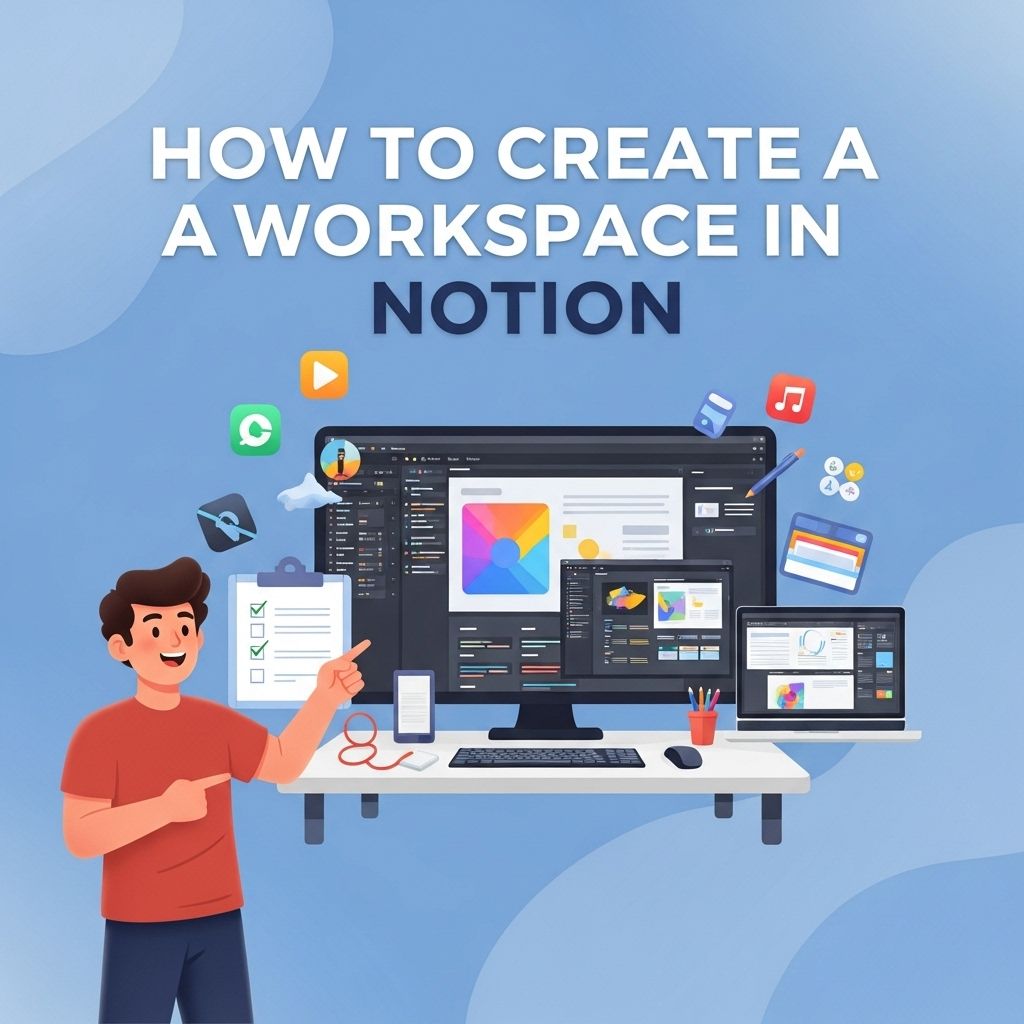
In today’s fast-paced digital landscape, productivity tools have become indispensable for managing tasks, projects, and collaboration. Notion stands out as a versatile platform that allows users to create customized workspaces tailored to their unique needs. Whether you’re a student, a freelancer, or part of a large team, learning how to effectively create and manage a workspace in Notion can significantly enhance your workflow. This article will guide you through the steps to create a workspace in Notion, elaborate on its features, and offer some tips to optimize your productivity.
Creating your perfect Notion workspace can significantly enhance your productivity and organization. By customizing layouts, choosing the right templates, and integrating useful tools, you can tailor your environment to suit your specific needs. For inspiration, consider exploring resources like find the perfect product mockup that can help visualize your ideas.
Understanding Notion
Notion is an all-in-one workspace that combines note-taking, task management, and collaboration tools into a single platform. It allows users to create databases, documents, and notes while providing various templates to simplify the process. This flexibility makes it suitable for diverse applications, from personal to professional use.
Key Features of Notion
- Customizable Pages: Users can create pages that suit their workflows, with options for different layouts, formats, and content types.
- Database Functionality: Notion enables the creation of databases for tasks, projects, or any other structured information.
- Collaboration Tools: Teams can work together in real time, share pages, comment on updates, and track changes.
- Templates: Notion offers a variety of templates to jumpstart your workspace setup, from simple to complex workflows.
Getting Started with Notion
Before you can create a workspace, you first need to sign up for a Notion account. Here’s how to do it:
- Visit the Notion Website: Go to notion.so.
- Create an Account: Sign up using your email address or a Google account.
- Download the App (Optional): Notion is available on multiple platforms including Windows, macOS, iOS, and Android. You can download it to your preferred device for easy access.
Creating Your Workspace
Once you’ve signed up, it’s time to create your workspace. Follow these steps:
Step 1: Access the Workspace Settings
To start, log in to your Notion account and navigate to the sidebar. Here’s how:
- Click on your profile icon at the bottom left corner.
- Select Settings & Members from the menu.
Step 2: Create a New Workspace
Inside the settings menu:
- Click on the Workspaces tab.
- Hit the New Workspace button.
Step 3: Configure Your Workspace
You’ll be prompted to fill out some basic information:
- Workspace Name: Choose a name that reflects the purpose of your workspace.
- Workspace Icon: Pick an appropriate icon or emoji to represent your workspace.
- Members: You can invite team members by entering their email addresses.
Step 4: Exploring the Dashboard
Once your workspace is created, you will land on the main dashboard. Here are some key areas to explore:
- Sidebar: This is where you can access all your pages, databases, and settings.
- Main Area: The central space where you can create and edit content.
- Search Bar: Quickly find pages or content across your workspace.
Optimizing Your Workspace
After setting up your workspace, it’s crucial to optimize it for better productivity. Here are some strategies:
Utilize Templates
Notion offers various templates to streamline your setup. Here are a few popular ones:
| Template Type | Description |
|---|---|
| Project Management | Track tasks, deadlines, and collaborators. |
| Meeting Notes | Document agendas, notes, and action items. |
| Personal Dashboard | Manage your daily tasks and reminders in one place. |
Integrate Databases
Using databases can help structure information effectively. Consider the following:
- Task Lists: Create a database for your tasks, complete with statuses, deadlines, and priorities.
- Knowledge Base: Compile important documents, guides, and resources in a centralized database.
Set Up a Task Management System
To stay organized, adopt a task management system that works for you:
- Choose between Kanban, list view, or calendar views based on your preference.
- Use tags and filters to categorize tasks by project or urgency.
Enhancing Collaboration
If you’re using Notion in a team environment, effective collaboration is essential. Here are some tips:
Invite Team Members
To add members to your workspace:
- Go to Settings & Members.
- Click on Invite Members and enter their email addresses.
- Assign roles (Admin, Member, or Guest) based on their responsibilities.
Utilize Comments and Mentions
Make use of the commenting feature for feedback and discussions:
- Comments: Leave comments on specific parts of a page for context and clarity.
- Mentions: Tag team members using @ to notify them about relevant updates.
Conclusion
Creating a workspace in Notion is a straightforward process that can significantly enhance your productivity and collaboration. By understanding the platform’s features, setting up your workspace thoughtfully, and implementing effective management strategies, you can create an environment that fosters efficiency and creativity. Whether you are managing personal projects or working within a team, Notion’s flexibility allows you to tailor your workspace to meet your needs effectively. Embrace the power of Notion and transform how you work!
FAQ
What is a workspace in Notion?
A workspace in Notion is a shared environment where you can organize your notes, tasks, databases, and projects collaboratively with your team or manage personal information.
How do I create a new workspace in Notion?
To create a new workspace in Notion, sign in to your account, click on your profile icon in the bottom left corner, select ‘Create a new workspace,’ and follow the prompts to set it up.
Can I have multiple workspaces in Notion?
Yes, Notion allows users to create multiple workspaces, enabling you to separate personal projects from professional ones or manage different teams.
Is it possible to invite others to my Notion workspace?
Yes, you can invite others to your Notion workspace by clicking on ‘Share’ in the top right corner and entering their email addresses to send them an invitation.
What features can I use in a Notion workspace?
In a Notion workspace, you can use features like databases, calendars, kanban boards, wikis, and collaborative documents to enhance your productivity and organization.
Are there any limitations to a Notion workspace?
While Notion offers extensive features, free workspaces have some limitations on the number of blocks and file uploads; upgrading to a paid plan can unlock additional functionalities.