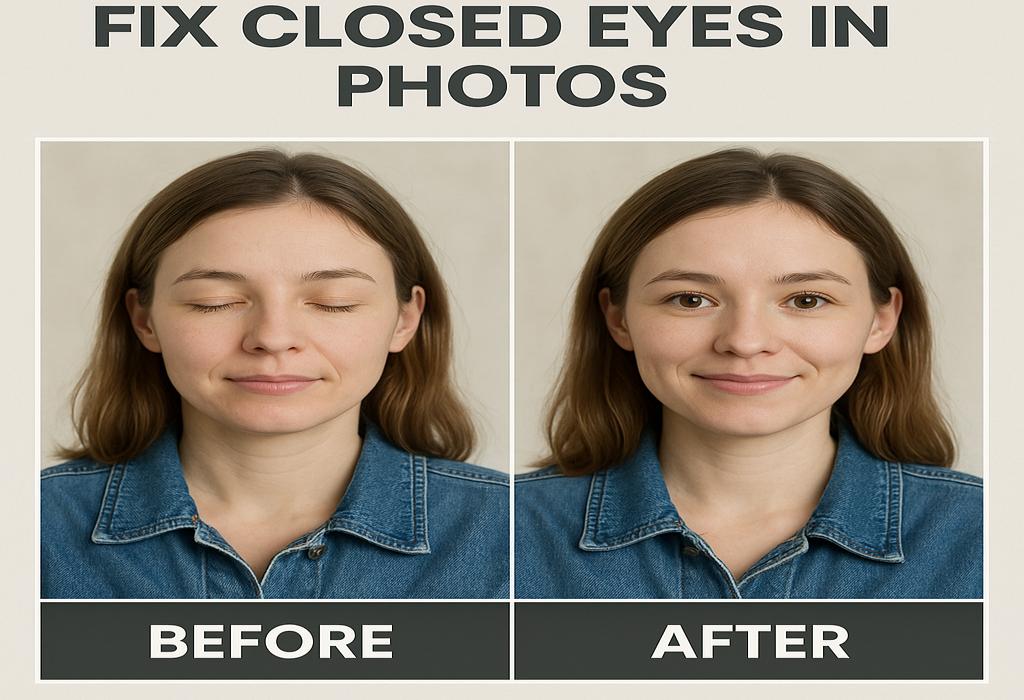
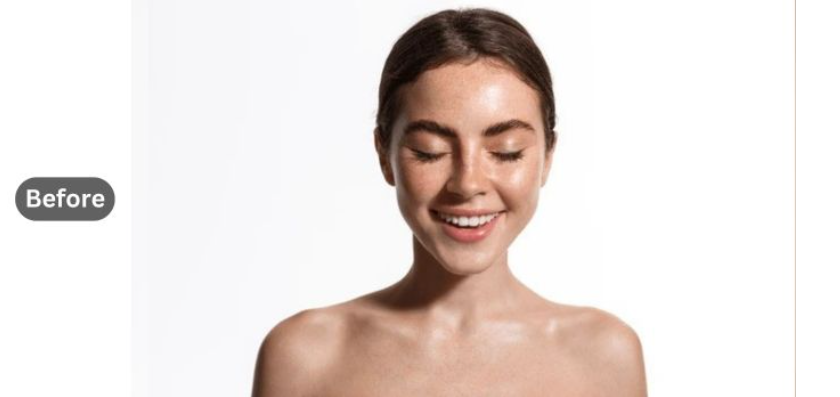
Blinking is completely natural, and when you have to keep your eyes open for a long time, it’s really hard to resist the urge to blink. Often, to bad luck, the photographer clicks the picture right at the moment someone blinks. It’s really one of the most annoying things, especially when the picture turns out to be decent except for that particular moment. But not all is lost because you still have the chance to salvage it! Today you will save your picture by learning how to fix closed eyes in photo by two of the most notorious methods.
If you’ve ever captured a moment only to find subjects with closed eyes, don’t fret—there are quick fixes to bring those memories back to life. Techniques range from simple cropping to more advanced editing methods, ensuring that your photos reflect the joy of the moment. For those interested in enhancing their branding with visuals, find logo mockups for branding can provide valuable inspiration.
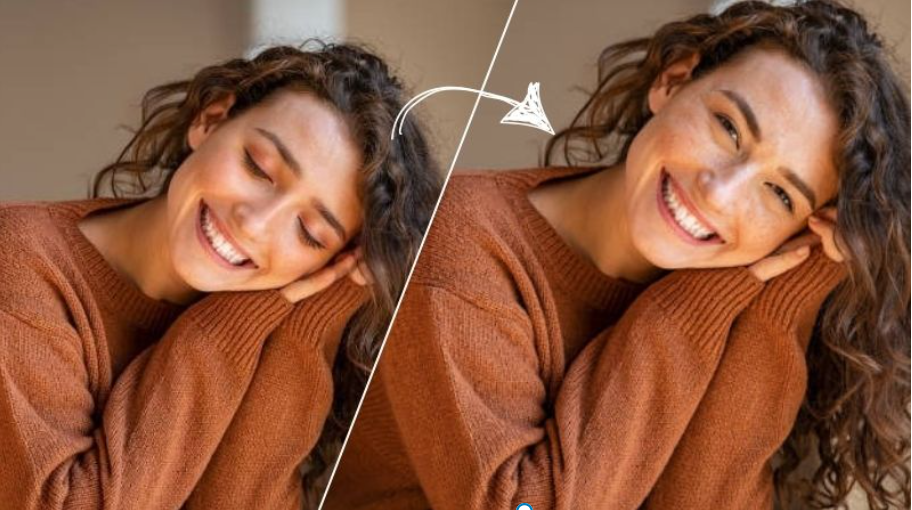
Fixing Closed Eyes Using Beautyplus AI Replace
BeautyPlus has long been the go-to beauty app for many. Now, it has evolved to deliver one of the most premium photo editing services, all thanks to AI. Its AI integration has allowed BeautyPlus to reach new heights it previously could not, and users benefit greatly from it, especially with its AI Replace tool. It competes with some of the leading photo editors in the market, standing shoulder to shoulder with them by offering top-tier tools to replace key elements. You can easily fix closed eyes with the BeautyPlus AI Replace tool, and it’s incredibly simple to use. Here’s a step-by-step guide on how to open eyes in photo.
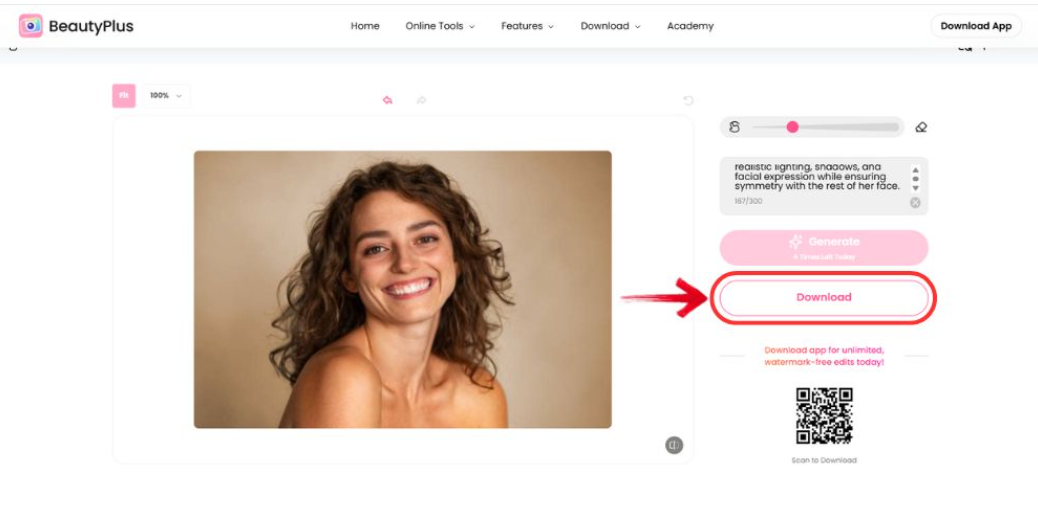
1. From your browser go to the official website of BeautyPlus, and head over to the “Online Tools” option from the homepage. From the drop-down menu, select “AI Replace Photo”.

2. You will be taken to the AI Replace Photo page. To the right hand, you will see the “Upload Image” button. Click on it to upload the photo that you would like to edit.

3. As the image opens use the brush and brush over the eyes of the image. You can then add a prompt similar to “Open eyes”.
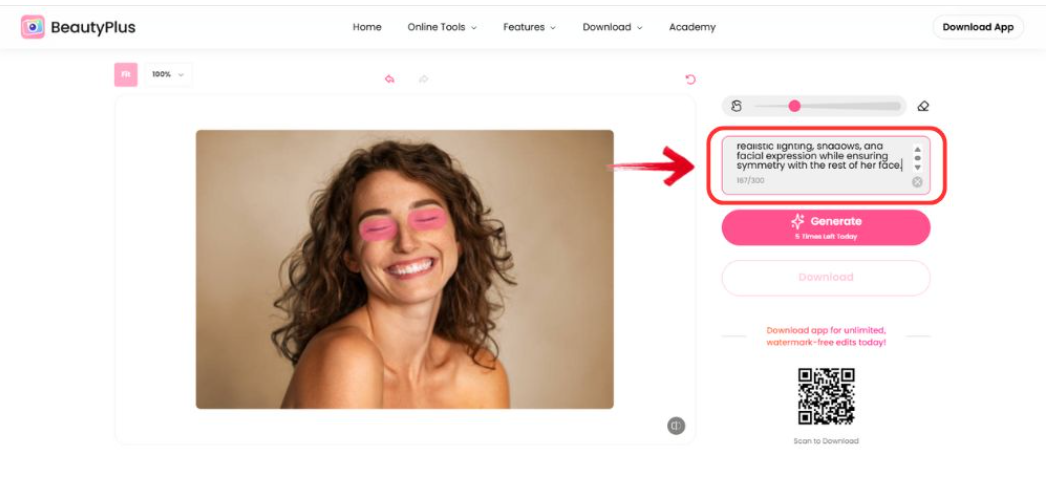
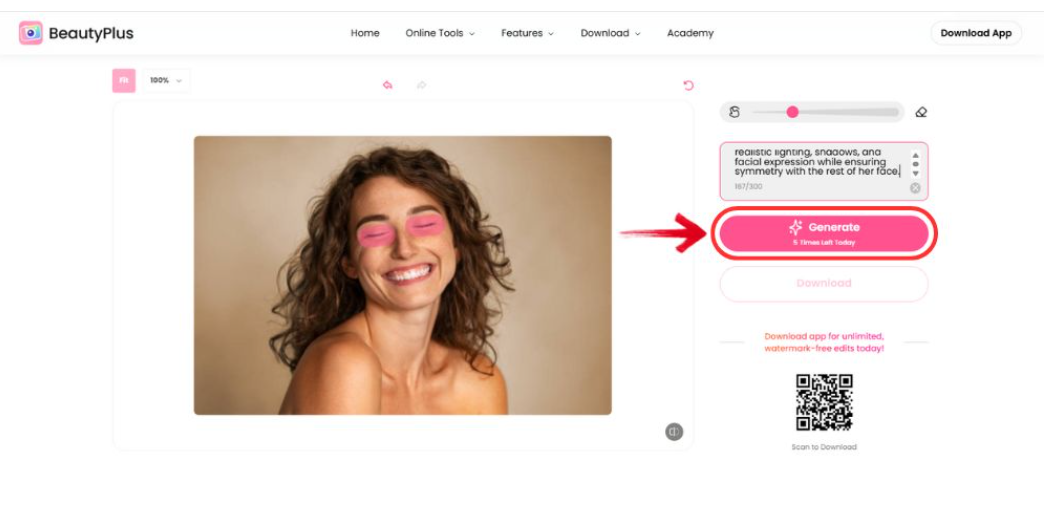
4. Next, tap on the “Generate” button for the AI to work its magic.
5. Once the image has been fixed, you can save it by clicking on “Download”.
Fixing Closed Eyes Using Photoshop
If you’ve ever taken a photo only to find that someone has their eyes closed, don’t worry—there are ways to fix it using Photoshop. You can use the Clone Stamp or Healing Brush tools to replace closed eyes with a suitable open-eyed version from another photo. For a more in-depth guide, explore our brush tutorials.
Adobe Photoshop is a name anyone familiar with photo editing knows about. Safe to say, it’s popular. For a long time, people relied on it to perform manual tasks for professional-grade editing. While it is a pro tool, it requires a pro to handle its features and years of expertise. However, there’s now an easier way to perform certain tasks, especially with AI. Here’s how you can fix closed eyes in Photoshop:
1. You will begin by opening Adobe Photoshop. Upload the photo that you want to fix your eyes in.
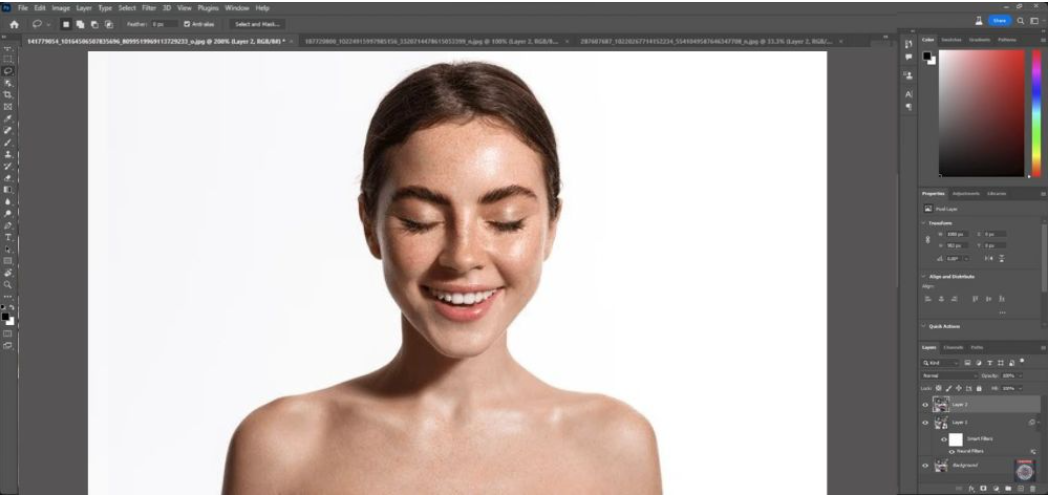
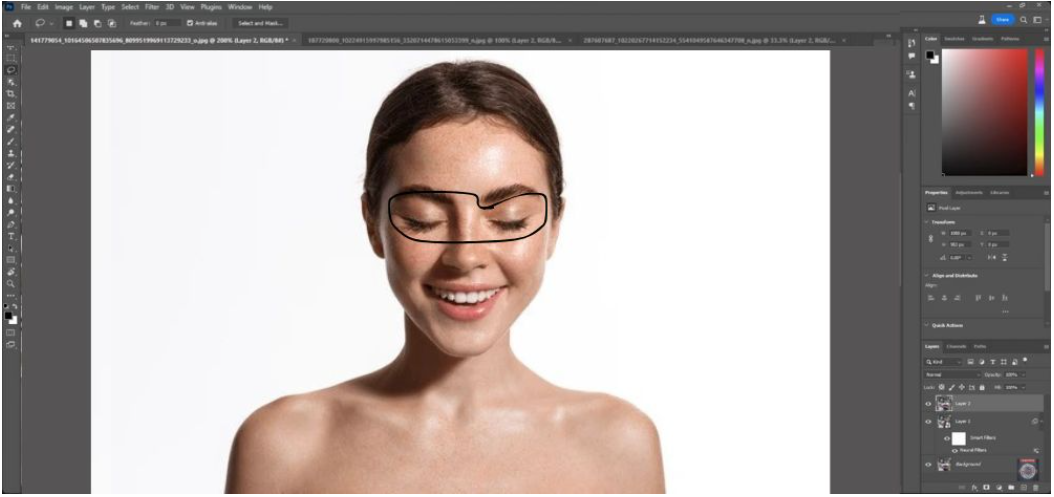
2. Press the “Shift+L” shortcut on your keyboard to select the Lasso Tool, and carefully outline the eyes freehand.
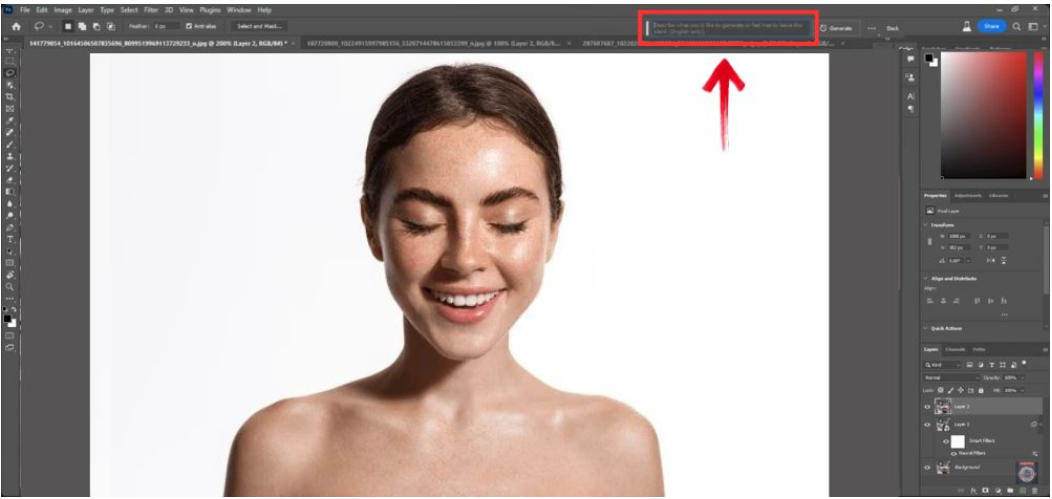
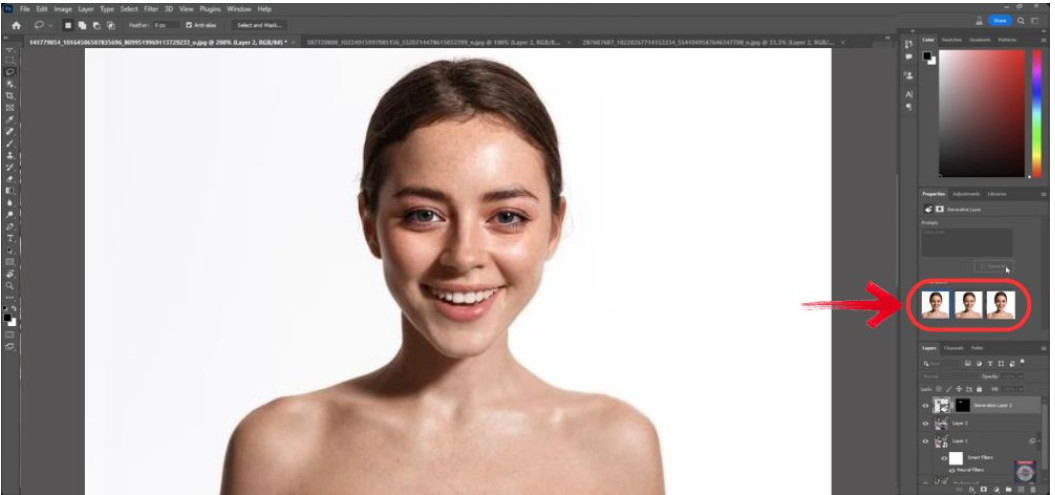
3. The Generative Fill feature will be activated. At the top right, you will find the “Contextual Taskbar”, type in your prompt. It could be as simple as, “Open her eyes”.
4. On the right, the properties panel will appear, offering you different results. Select the one that you like the best. Click on the picture that most closely resembles the most realistic picture!
Before
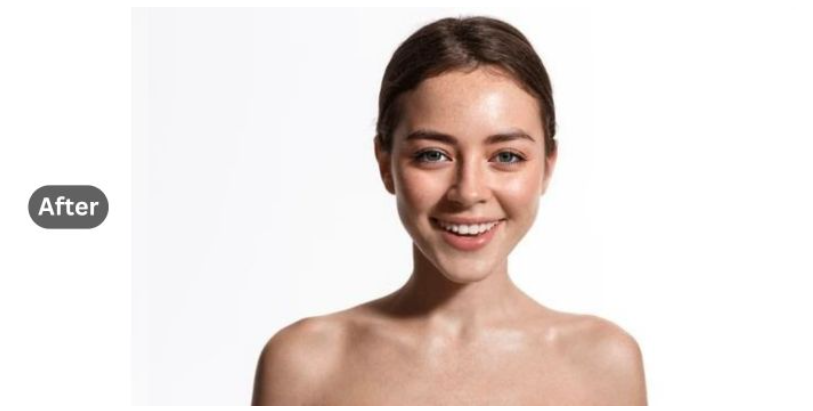
After
Bottom Line
It’s a real bummer when a lively and wholesome moment is ruined by just a blink. Luckily, there are plenty of tools to help you salvage these photos. The BeautyPlus AI Replace tool can not only impressively open closed eyes in an image but also do much more, helping you fix small inconveniences like red-eye correction, blemish removal, stray hair fixing, and even adjusting facial expressions to ensure your photo looks flawless.