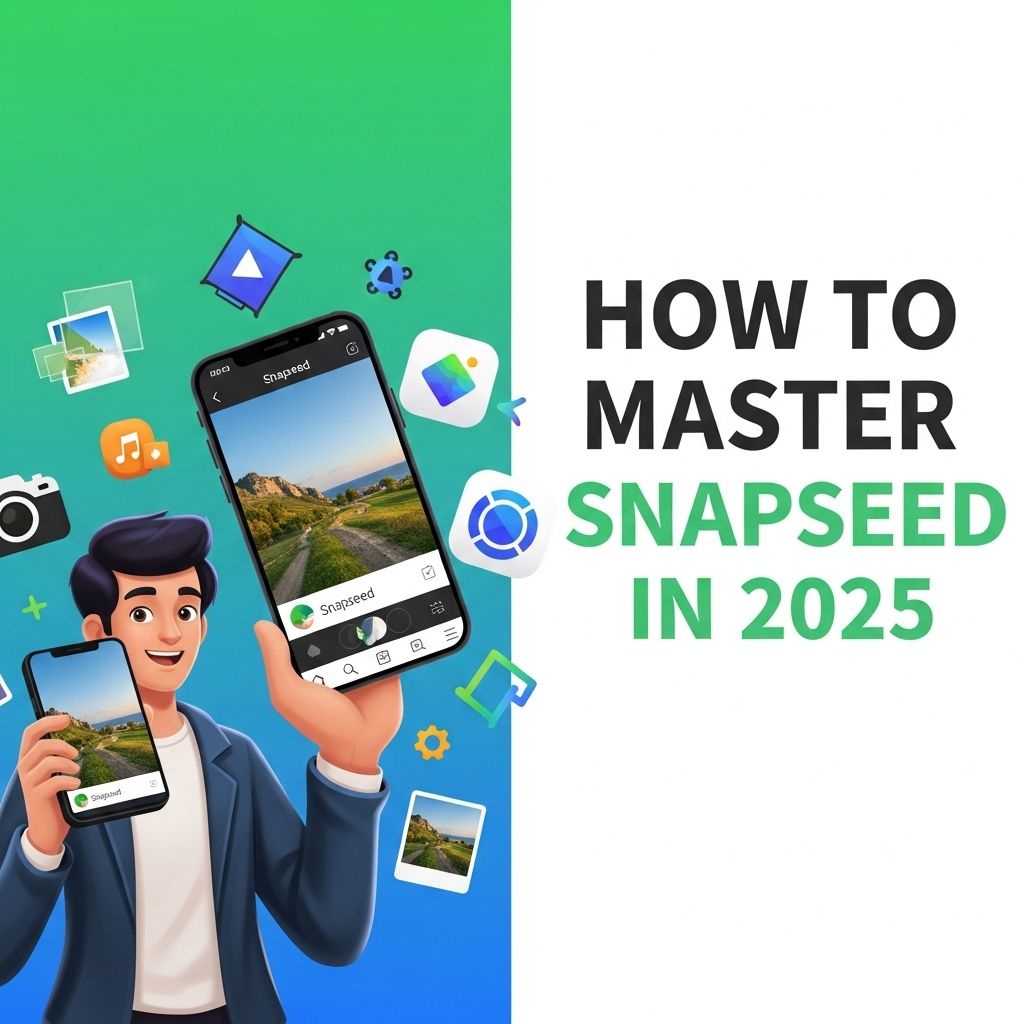
In the rapidly evolving world of mobile photography and editing, mastering applications like Snapseed can elevate your skills and enhance your creative expression. As we step into 2025, Snapseed remains a powerful tool for both amateur and professional photographers. This article will guide you through advanced techniques, features, and tips that can help you become a Snapseed pro.
Mastering Snapseed in 2025 opens up a world of creative possibilities for your photography. This powerful editing app offers a wide range of features that can elevate your images and streamline your workflow. For those looking to enhance their fashion portfolios, consider exploring how to customize your own dress mockup to create eye-catching presentations.
Exploring the Snapseed Interface
Before diving into advanced features, it’s essential to familiarize yourself with the Snapseed interface. The app is divided into two primary sections:
- Tools: This section contains various editing options like Tune Image, Details, and Healing.
- Filters: Here, you can access creative filters such as Vintage, Grunge, and Glamour Glow.
Understanding where to find these tools allows for a more efficient editing workflow.
Essential Editing Tools in Snapseed
Tune Image
The Tune Image tool is your go-to for basic adjustments. Here’s how to effectively use it:
- Brightness: Adjusts the overall lightness or darkness of your image.
- Contrast: Alters the difference between light and dark areas.
- Saturation: Enhances or diminishes the intensity of colors.
- Ambience: Improves contrast and color in shadows without affecting highlights.
- Shadows: Brightens the darker parts of your image.
- Highlights: Reduces brightness in the lighter areas.
Details
This tool is perfect for enhancing the sharpness and structure of your images. Here’s a quick guide:
- Structure: Increases the clarity without making it look overly processed.
- Sharpening: Enhances the edges, making your images pop.
| Tool | Function |
|---|---|
| Structure | Enhances detail and texture |
| Sharpening | Increases edge definition |
Creative Filters to Transform Your Images
Snapseed offers a variety of creative filters that can greatly enhance the mood of your photos.
Using Vintage
The Vintage filter adds a timeless feel to your images. You can customize:
- Style: Choose from various vintage presets.
- Grain Size: Adjust the amount of texture added.
Applying Double Exposure
Double Exposure allows you to blend two images seamlessly. Here’s how to do it:
- Select your base image.
- Tap on the ‘+’ icon to add a second image.
- Adjust the blend mode and opacity to achieve the desired effect.
Advanced Techniques for Mastery
Selective Adjustments
Mastering selective adjustments can take your editing to the next level. This feature allows you to make precise edits to specific areas of an image:
- Control Point: Place control points on the area you want to edit, adjusting brightness, contrast, and saturation independently.
Cinematic Look
Creating a cinematic look involves achieving that shallow depth of field. You can use the:
- Lens Blur tool to focus on the subject and blur out the background.
Exporting and Sharing Your Masterpiece
Once you’ve perfected your image, it’s time to share it with the world. Snapseed allows you to export your images in various formats:
- JPEG: Best for sharing on social media.
- PNG: Ideal for retaining quality for prints.
Setting Export Preferences
Make sure to adjust your export settings according to your needs by:
- Choosing the appropriate resolution.
- Selecting the desired file format.
Incorporating Snapseed into Your Workflow
To truly master Snapseed, consider integrating it into your photography workflow seamlessly:
- Use Snapseed as a primary editing tool for your mobile photography projects.
- Regularly practice with different features to become more efficient.
- Stay updated with new updates and features released by Snapseed.
Conclusion
With its robust set of tools and user-friendly interface, Snapseed offers endless possibilities for creativity and professional quality editing. Whether you’re enhancing a simple snapshot or creating intricate compositions, mastering Snapseed in 2025 will allow you to bring your artistic vision to life. Embrace the features, practice regularly, and watch your photography skills evolve!
FAQ
What is Snapseed and how can it enhance my photos?
Snapseed is a powerful photo editing app developed by Google that offers a wide range of tools and filters to enhance your images. It allows users to adjust exposure, color, and sharpness, apply filters, and even use selective edits.
What are the essential tools to learn in Snapseed?
To master Snapseed, focus on essential tools such as Tune Image, Details, Curves, and Portrait. These tools will help you adjust brightness, contrast, and detail, as well as enhance facial features in portraits.
How can I create custom looks in Snapseed?
You can create custom looks in Snapseed by using the ‘Looks’ feature. After editing your photo, save your adjustments as a new look, which you can apply to future images for consistency in style.
Are there any tips for using Snapseed on mobile devices?
When using Snapseed on mobile, utilize gestures like pinch to zoom and swipe to navigate through tools. Additionally, practice using the Undo feature frequently to experiment with edits without fear.
Can I use Snapseed for professional photography?
Yes, Snapseed is suitable for professional photography. Its advanced editing capabilities, non-destructive editing features, and ability to export images in high quality make it a great choice for photographers.
What are some common mistakes to avoid when editing photos in Snapseed?
Common mistakes include over-editing, applying too many filters, and neglecting to save original files. Always keep a backup of the original image and aim for subtle adjustments to maintain a natural look.