In the world of digital design, transforming sketches into vector graphics is an essential skill, particularly for graphic designers, illustrators, and artists. Vector graphics are preferred over raster graphics due to their scalability and versatility. This article will guide you through various methodologies and tools to achieve this transformation efficiently.
Transforming sketches into vector graphics can elevate your design projects by providing scalability and cleaner lines. This step-by-step guide will walk you through the process, ensuring you leverage advanced image editing techniques for optimal results. Dive deeper into the world of advanced image editing techniques to enhance your skills.
The Importance of Vector Graphics
Vector graphics are based on mathematical expressions, which means they can be resized without losing quality. This scalability makes them ideal for a variety of applications, including:
- Logos and branding
- Print media
- Web graphics
- Illustrations for animation
Advantages of Using Vectors
Some of the key benefits of vector graphics include:
- Scalability: Resize without quality loss.
- Editability: Individual components can be modified easily.
- File Size: Generally smaller than raster images.
Tools for Vectorization
There are several tools available that can help you convert sketches into vector formats. Below are some popular applications:
| Tool | Platform | Features |
|---|---|---|
| Adobe Illustrator | Windows, macOS | Powerful vector editing, live trace, extensive libraries |
| CorelDRAW | Windows, macOS | Advanced features for illustrations, interface customization |
| Inkscape | Windows, macOS, Linux | Free and open-source, extensive plugin support |
| Affinity Designer | Windows, macOS, iPad | Cost-effective, dual-environment (raster and vector) |
Step-by-Step Process to Convert Sketch to Vector
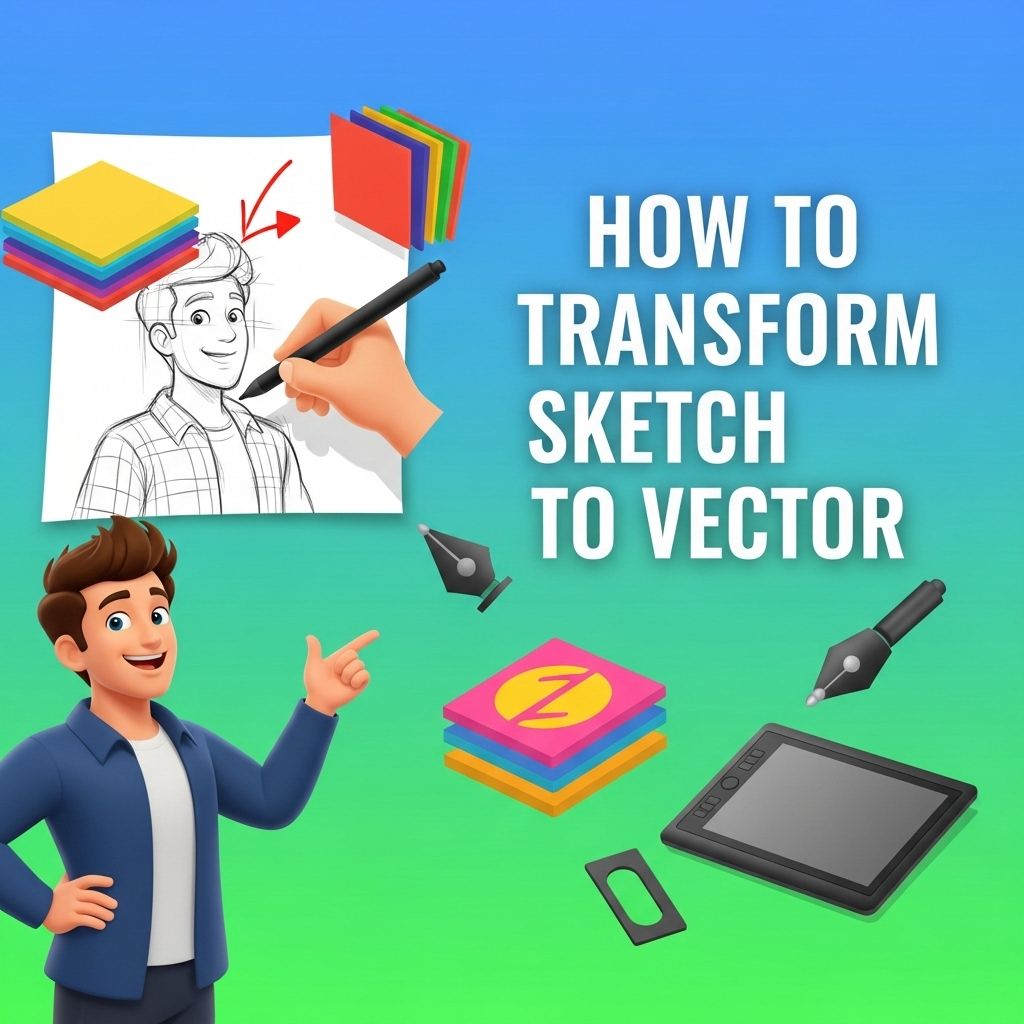
Here are the general steps to take your sketch to a polished vector graphic:
1. Prepare Your Sketch
Start with a clear and high-quality sketch. Scan or photograph your drawing at a high resolution to ensure detail retention.
2. Import the Sketch into a Vector Software
Open your chosen vector software and import the image file of your sketch. Make sure to place it on a separate layer for easier manipulation.
3. Use Tracing Options
Most vector software features an auto-trace function that can help convert the raster image into vector format. Adjust the settings to capture the important details of your original sketch.
4. Manual Refinement
After auto-tracing, you may need to clean up your design:
- Remove unnecessary points and paths.
- Simplify complex shapes.
- Refine curves to enhance smoothness.
5. Add Colors and Textures
Once the basic vector outlines are ready, you can start adding colors, gradients, and textures. Consider the following:
- Choose a color palette that reflects your vision.
- Utilize gradients to give depth.
- Add textures for a more organic feel.
6. Final Touches
Make sure to review your vector graphic for any final adjustments:
- Check for alignment and spacing.
- Ensure layers are organized.
- Save your work in multiple formats (AI, SVG, EPS) for versatility.
Tips for Effective Vectorization
Here are some additional tips to enhance your experience:
- Use a graphics tablet for more precise control during the tracing process.
- Experiment with different brush settings in your vector software.
- Watch tutorials specific to the tool you are using to discover hidden features.
Common Challenges and Solutions
Vectorization can come with its own set of challenges. Here are some common issues you might face and how to tackle them:
1. Loss of Detail
If your vector image lacks detail:
- Increase the resolution of the original sketch before importing.
- Adjust the tracing settings to be more sensitive to detail.
2. Complex Shapes
Complex designs can be tricky to convert:
- Break down intricate shapes into simpler components.
- Vectorize each part separately and then combine them.
3. Color Accuracy
Ensuring that colors match your vision can be tough:
- Use color sampling tools to match the colors from your sketch.
- Maintain a consistent color palette throughout your design.
Conclusion
Transforming sketches into vector graphics is a rewarding process that enhances your digital design capabilities. By following the steps outlined in this article, utilizing the right tools, and practicing your skills, you will be able to create polished and professional vector artwork that stands out in any project.
FAQ
What is the best way to transform a sketch into a vector image?
The best way to transform a sketch into a vector image is by using software like Adobe Illustrator, CorelDRAW, or online tools like Vector Magic. You can scan your sketch, import it into the software, and use the ‘Image Trace’ or ‘Live Trace’ feature to convert it into a vector format.
Can I convert a hand-drawn sketch to vector without using software?
While software is the most effective method, you can also use mobile apps that offer vectorization features, such as Adobe Capture or AutoCAD, which allow you to capture sketches and convert them to vector graphics directly from your device.
What file formats can I save my vector image in after converting a sketch?
After converting a sketch to vector, you can save your image in various file formats such as SVG, AI, EPS, or PDF, which are commonly used for vector graphics.
Is it possible to convert a low-quality sketch into a high-quality vector image?
Yes, it is possible to convert a low-quality sketch into a high-quality vector image, but the resulting vector quality will depend on the original sketch’s clarity. Using image editing techniques to enhance the sketch before conversion can improve the final result.
What are the benefits of using vector images over raster images?
Vector images offer several benefits over raster images, including scalability without loss of quality, smaller file sizes, and the ability to easily edit shapes and colors, making them ideal for logos, illustrations, and graphics.
Do I need advanced skills to convert a sketch to vector?
While basic skills in graphic design software can help, many programs offer user-friendly tools and tutorials that make it easy for beginners to convert sketches to vector images without advanced skills.